
Download Internet Explorer 8 – Fast, Secure, and Feature‑Rich Web Browser
Overview
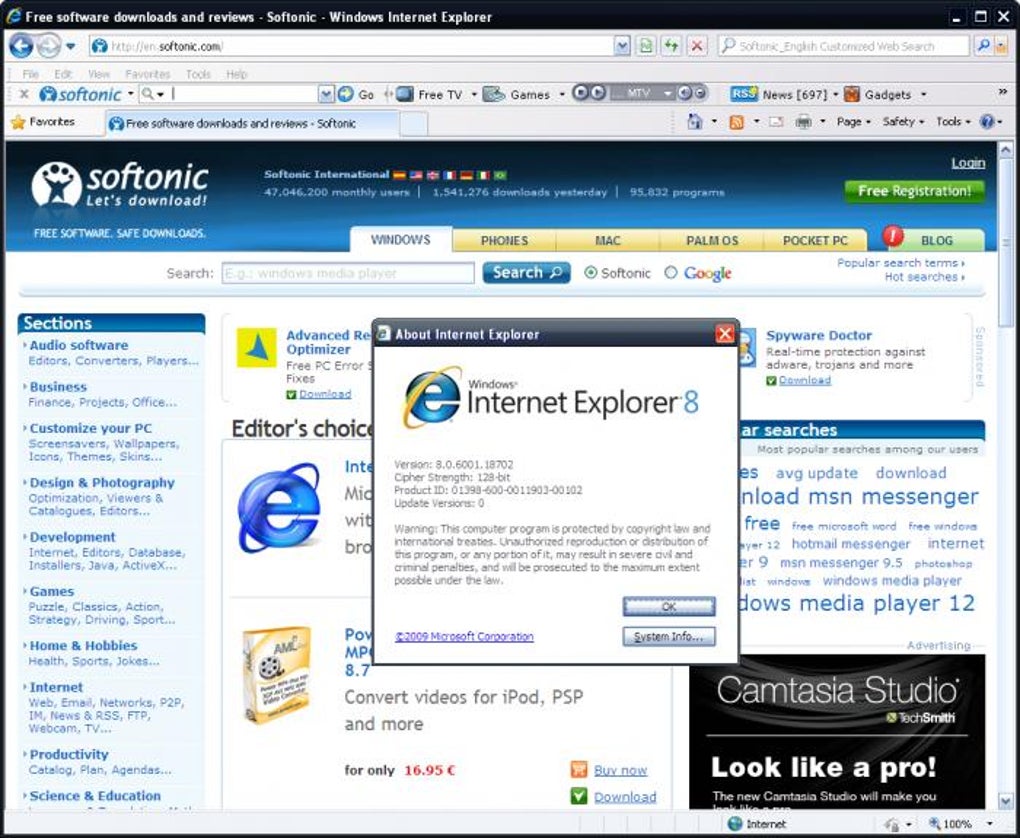
Internet Explorer 8 (IE8) marks a pivotal moment for Microsoft’s flagship web browser. After years of incremental updates, IE8 introduces a set of modern tools that aim to keep the browser competitive against emerging rivals while maintaining the deep integration with Windows that users have come to expect. The most notable additions are Accelerators and Web Slices, two features designed to streamline everyday browsing tasks and keep users informed without the need to open multiple tabs.
IE8 also re‑introduces the classic menu bar, adds a Suggested Sites panel, and delivers a robust InPrivate Browsing mode for privacy‑conscious users. Under the hood, Microsoft has bolstered security with the SmartScreen filter, improved rendering performance, and refined standards support, ensuring that virtually every website on the internet can be displayed correctly. Whether you are a casual home user, a business professional, or a developer testing legacy applications, IE8 offers a blend of familiarity and new functionality that makes it a compelling download for Windows environments.
Key Features and What They Mean for You
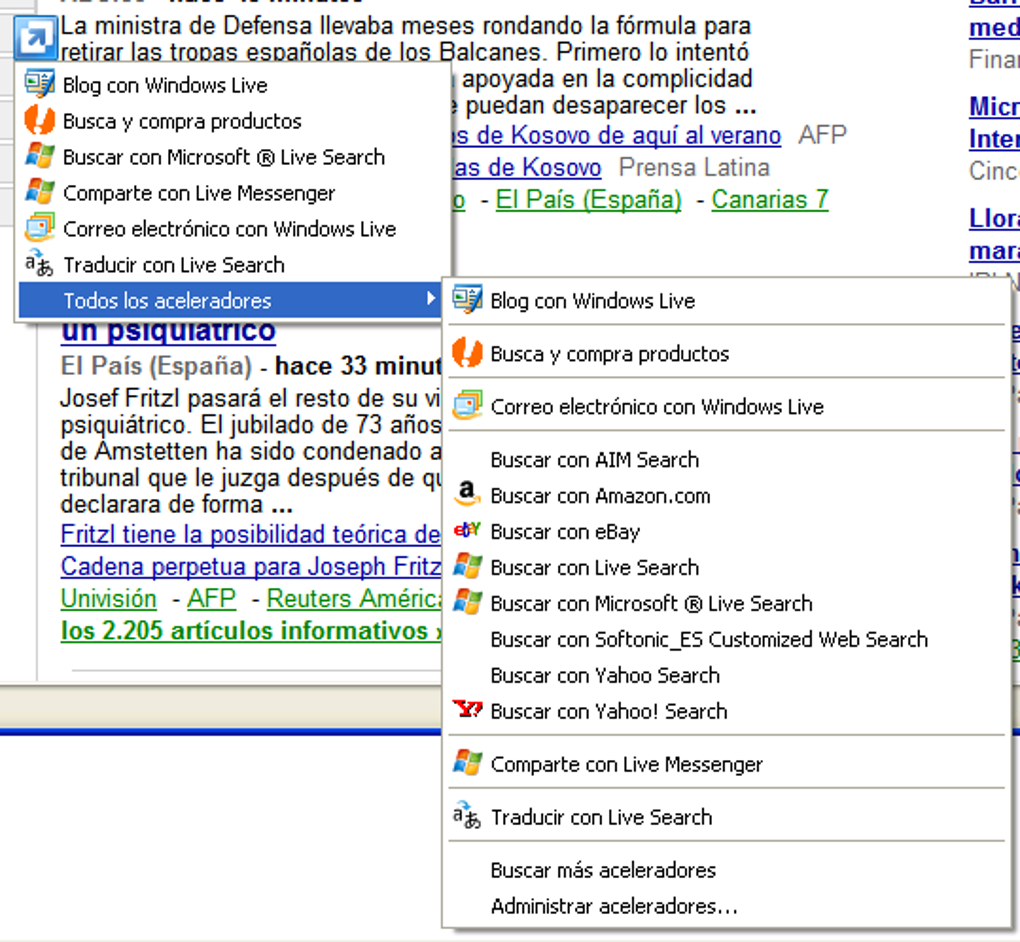
- Accelerators (formerly Activities) – Right‑click any selected text or image to instantly launch a related online service such as map lookup, dictionary definition, or search query, all powered by Windows Live.
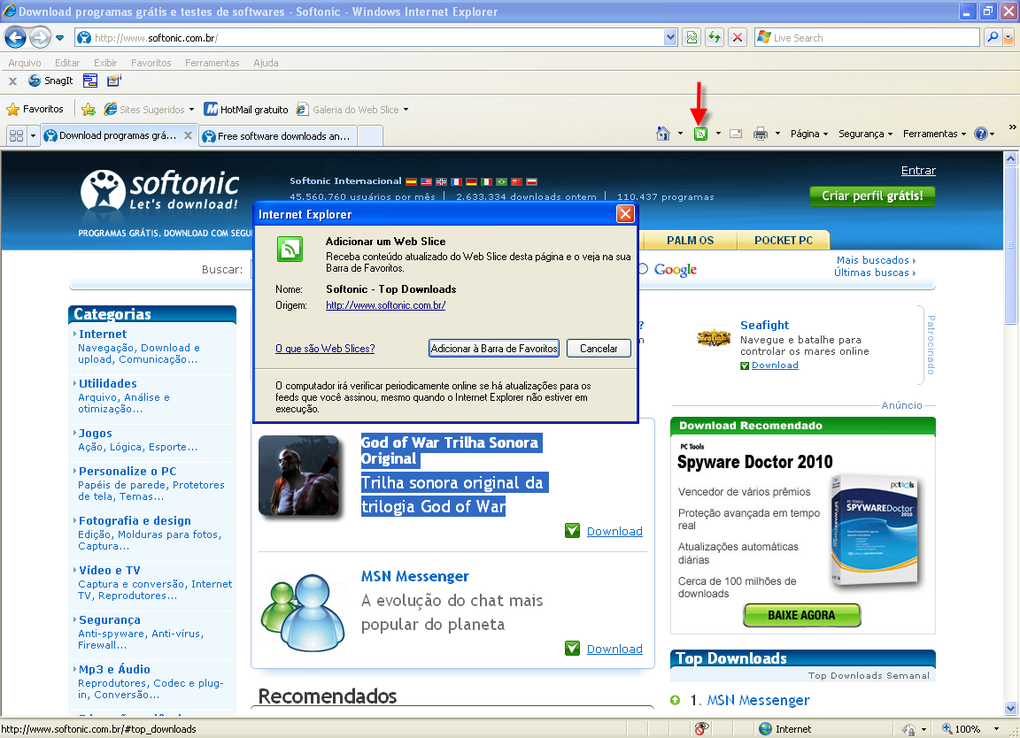
- Web Slices – Subscribe to live snippets of content from any webpage (e.g., auction bids, stock prices, weather) that update in real time without needing a full RSS feed.
- Suggested Sites – An intelligent recommendation engine that proposes new websites based on your browsing history, helping you discover relevant content.
- InPrivate Browsing – A privacy mode that prevents the storage of cookies, history, and temporary files, similar to Chrome’s Incognito.
- SmartScreen Filter – Real‑time protection against phishing and malicious sites, reducing the risk of credential theft.
- Return of the Menu Bar – Classic drop‑down menus are back by default, offering quick access to File, Edit, View, and Tools commands.
- Improved Tab Management – New tab grouping, visual search box, and faster tab switching for a smoother multitasking experience.
- Enhanced Zoom and Rendering – Better scaling for high‑resolution displays and improved compliance with modern web standards.
These features collectively address long‑standing user requests: faster access to web services, reduced reliance on multiple tabs, and stronger security. While Accelerators lean heavily on Microsoft’s own services, they provide a seamless integration that many users find valuable. Web Slices fill a niche that RSS can’t cover, delivering live updates from any part of a page. Together, they illustrate Microsoft’s intent to make IE8 not just a browser, but a productivity hub.
Installation, Usage Instructions, and Compatibility
How to Download and Install IE8
Downloading Internet Explorer 8 is straightforward. Visit Microsoft’s official download page, select the appropriate language pack, and click the “Download” button. The installer is a small .exe file (approximately 20 MB) that works on most Windows versions released after Windows XP Service Pack 2.
Once the file is saved, run it as an administrator to ensure the installer can modify system components. Follow the on‑screen wizard: accept the license agreement, choose the installation directory (default is C:\Program Files\Internet Explorer), and let the setup copy files and update the registry. After installation, a system reboot is recommended to finalize integration with Windows Update.
First‑Run Configuration
When you launch IE8 for the first time, a quick “Welcome” wizard walks you through essential settings. You can import bookmarks from previous IE versions, enable or disable Accelerators, and decide whether InPrivate Browsing should be available via a toolbar button. The browser also checks for the latest security patches, applying them automatically if you have an active Internet connection. For corporate environments, Group Policy templates allow administrators to pre‑configure these options across multiple machines.
System Compatibility
Internet Explorer 8 officially supports the following operating systems:
- Windows XP (SP2 or later)
- Windows Vista (all editions)
- Windows 7 (all editions)
- Windows Server 2003, 2008, and later
While IE8 can run on older versions of Windows, certain features—such as Accelerators—require the underlying Windows Live infrastructure, which may not be present on legacy systems. The browser is optimized for 32‑bit environments but also offers a 64‑bit version for Windows Vista 64‑bit and Windows 7 64‑bit. It does not run on macOS, Linux, Android, or iOS; users on those platforms should consider Microsoft Edge or other cross‑platform browsers.
Pros, Cons, and Frequently Asked Questions
Pros
- Fast page rendering and improved JavaScript performance.
- Integrated security features (SmartScreen, InPrivate Browsing).
- Productivity‑boosting tools like Accelerators and Web Slices.
- Classic menu bar restores familiar navigation for long‑time users.
- Strong compatibility with legacy web applications.
Cons
- Accelerators rely heavily on Microsoft’s online services, limiting flexibility.
- IE8 is Windows‑only; no native support for macOS, Linux, or mobile OSes.
- Older rendering engine compared to modern browsers (e.g., Chrome, Firefox).
- Limited extension ecosystem; most add‑ons are legacy ActiveX controls.
- End‑of‑life for IE8 means no future security updates beyond critical patches.
FAQ – Your Questions Answered
Is Internet Explorer 8 still safe to use?
IE8 receives only critical security patches from Microsoft. For everyday browsing, it is advisable to use a more up‑to‑date browser, but IE8 remains safe for legacy applications that require it.
Can I run IE8 on Windows 10?
Officially, IE8 is not supported on Windows 10. While it may install via compatibility mode, you may encounter rendering issues and lack of security updates.
How do Web Slices work?
Web Slices let you subscribe to a specific part of a webpage (identified by a slice tag). The browser polls the page at set intervals and updates the slice in your Favorites Bar, showing live data like auction bids or weather.
Is InPrivate Browsing the same as Chrome’s Incognito mode?
Functionally they are similar—both prevent storage of history, cookies, and temporary files. However, InPrivate does not block tracking scripts as aggressively as some extensions available for Chrome.
Can I disable Accelerators if I don’t want to use Windows Live services?
Yes. In the Internet Options > Advanced tab, you can uncheck “Enable Accelerators” to remove the right‑click menu items.
Conclusion and Call to Action
Internet Explorer 8 represents a solid step forward for Microsoft’s long‑standing browser, blending familiar UI elements with new productivity tools such as Accelerators, Web Slices, and robust security measures. While it falls short of the performance and extensibility of today’s leading browsers, its compatibility with legacy web applications and deep Windows integration make it a viable choice for businesses that still rely on older intranet sites or custom ActiveX controls. If you need a secure, Windows‑only browser that can handle both modern sites and dated corporate portals, downloading IE8 remains a practical solution—just remember to supplement it with a current browser for everyday browsing.
Ready to experience the new features? Click the download button below, install IE8, and explore the Accelerators and Web Slices that can transform the way you browse.
Pros: Fast rendering, InPrivate mode, SmartScreen security, useful Accelerators, Web Slices.
Cons: Windows‑only, limited extension support, reliance on Windows Live, nearing end‑of‑life.







